WebP is a modern image format designed to provide efficient compression for images on the web.
However, you may occasionally receive a WebP file that does not work with a particular application, editing workflow or website.
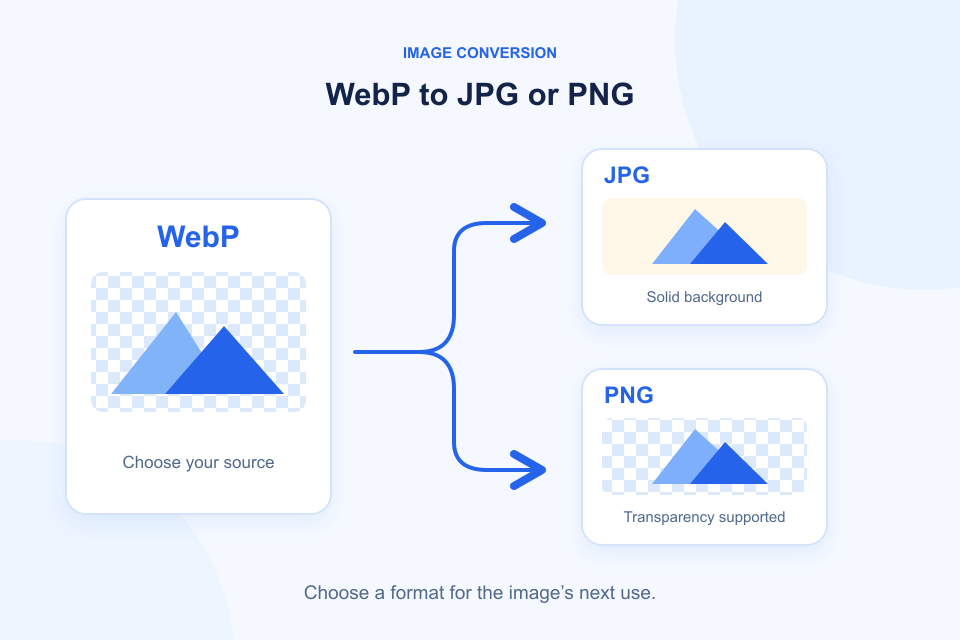
In these situations, converting WebP to JPG or PNG can make the image easier to use.
But which format should you choose?
This guide explains the differences and shows you what to consider before converting.
1. What Is WebP?
WebP is an image format that supports both lossy and lossless compression.
It also supports transparency and animation as a format.
Simpixly accepts static WebP, JPG and PNG images. It rejects animated WebP and APNG rather than converting only one frame. This guide covers one static image, up to 20 MB, 8192 pixels per side and 16 megapixels.
One of its main advantages is that it can provide smaller image files while maintaining useful visual quality.
Despite its browser support, you may still encounter applications or workflows that require JPG or PNG instead.
That is where image conversion becomes useful.
2. WebP to JPG: When Should You Use It?
JPG is widely used for photographs, everyday images and sharing.
Converting WebP to JPG may be useful when:
- A website only accepts JPG uploads.
- An application does not support WebP.
- You need a common format for sharing photographs.
- You are working with an older image editing workflow.
However, there is one important limitation.
JPG does not support transparency.
If your original WebP image has a transparent background, the transparent areas must be filled with a background color when converting to JPG.
JPG also uses lossy compression. Converting an already compressed WebP image to JPG cannot restore image details that were previously lost.
3. WebP to PNG: When Should You Use It?
PNG is often a better choice when transparency matters.
Consider PNG when working with:
- Logos.
- Icons.
- Graphics with transparent backgrounds.
- Screenshots.
- Images containing sharp text or edges.
PNG supports transparency and lossless encoding.
However, converting a lossy WebP image into PNG does not restore the original lost detail.
It simply stores the available image information using a different format.
PNG files can also be larger than WebP files, especially for photographs.
4. How to Convert WebP to JPG or PNG
Open the Simpixly Image Converter to change the output format.
Follow these general steps:
Step 1: Choose your WebP image
Select the WebP file you want to convert.
Step 2: Choose an output format
Select JPG or PNG in Convert to, depending on your needs. For JPG, set Image quality and JPG background color. PNG does not use a lossy quality slider.
Step 3: Review the result
Click Convert Image to generate the result, then check the image dimensions, appearance, background and actual file size.
Pay special attention to transparent areas if converting to JPG.
Step 4: Download the converted image
Save the output file and confirm that the new format works in your intended application.
5. Which Format Should You Choose?
Here is a simple comparison.
| Requirement | Recommended Format |
|---|---|
| Everyday photographs | JPG |
| Transparent backgrounds | PNG |
| Logos and sharp graphics | PNG |
| Smaller web image files | WebP, after comparing the actual result |
| Broad compatibility with older workflows | JPG or PNG |
These are general recommendations, not absolute rules.
The best choice depends on the image itself and how you intend to use it.
6. Does Converting WebP Reduce Image Quality?
It depends on the output format and conversion settings.
Converting to JPG may introduce additional lossy compression.
Converting to PNG avoids introducing another lossy encoding step if the conversion preserves the decoded image accurately, but it cannot recover details already lost in the original WebP.
For important images, keep a copy of the original file.
Our JPG, PNG and WebP comparison explains the wider format trade-offs. For the processing mechanism behind a local converter, see how browser-based image processing works.
Frequently Asked Questions
Can I convert WebP to JPG without losing quality?
Not necessarily. JPG uses lossy compression, so some additional quality loss may occur. The result depends on the conversion settings.
Can PNG preserve the transparent background of WebP?
Yes, PNG supports transparency. However, the converter must correctly preserve the alpha channel.
Is WebP better than JPG?
WebP can offer more efficient compression and supports transparency. JPG remains useful because of its widespread compatibility.
Can I convert WebP to PNG for editing?
Yes. PNG can be useful for graphics and images that require transparency. Remember that conversion does not restore details lost during earlier compression.
Convert Images with Simpixly
Need to change your image format?
Use Simpixly Image Converter to convert supported images into the format you need.